Home / Getting started
Getting started
Open a database, find a record, change something, and get a
.res back out. This walks through the whole loop once.
Where to get the editor
The editor is a native desktop program for Windows and Linux. Most people never build it themselves: if someone in your Harpoon community already distributes a build, that is the easiest way to get one.
- Windows comes as a zip. Unpack it into any folder you
can write to and run
hcpe.exe. Two OpenSSL library files (.dll) sit beside it; they are what the update check uses to reach the update server, so keep them in the same folder as the program. - Linux comes as a
.tar.gzholding one binary built for GTK2. Unpack it and run it.
There is no installer, and nothing else to install first. Once it is running, new versions arrive through the editor itself: Help → Check for updates…, or the banner it shows when it has found one (the Settings guide covers how updates work). If you have been using the earlier editor, version 2026.009, its own update installs this one, the first native version; a copy older than 2026.009 cannot, and should be replaced from a fresh build instead.
Where your database lives
A stock commondb.res, with its paired commondb.rsr,
lives inside your Harpoon Classic install directory, alongside
Winharp32.exe and the .res/.rsr pair
for each installed battleset.
Exactly where that directory is depends on how you installed the game, so if
you are not sure, search your machine for commondb.res rather
than guess a path.
commondb.res is what the
game reads: compact, byte-packed, and the artefact everything else is judged
against. A .hcpe.json project
file is what the editor itself reads and writes: the same records, plus
the record ids the editor uses to track them across edits, the full change
history, and the database's own name. Import a .res once; from
then on, save and reopen the .hcpe.json, and export a fresh
.res whenever you want the game, or someone else, to have what
changed. The .res is lossy for anything it has no room to
record; the project file is not. Nothing the editor does writes back over
the .res you opened: your work is saved to its own
.hcpe.json, and an export goes wherever the Save dialog points,
which asks before it replaces a file, so the original stays safe to keep
re-importing from if something goes wrong.
-
Open a database
Use File → Open… and pick a
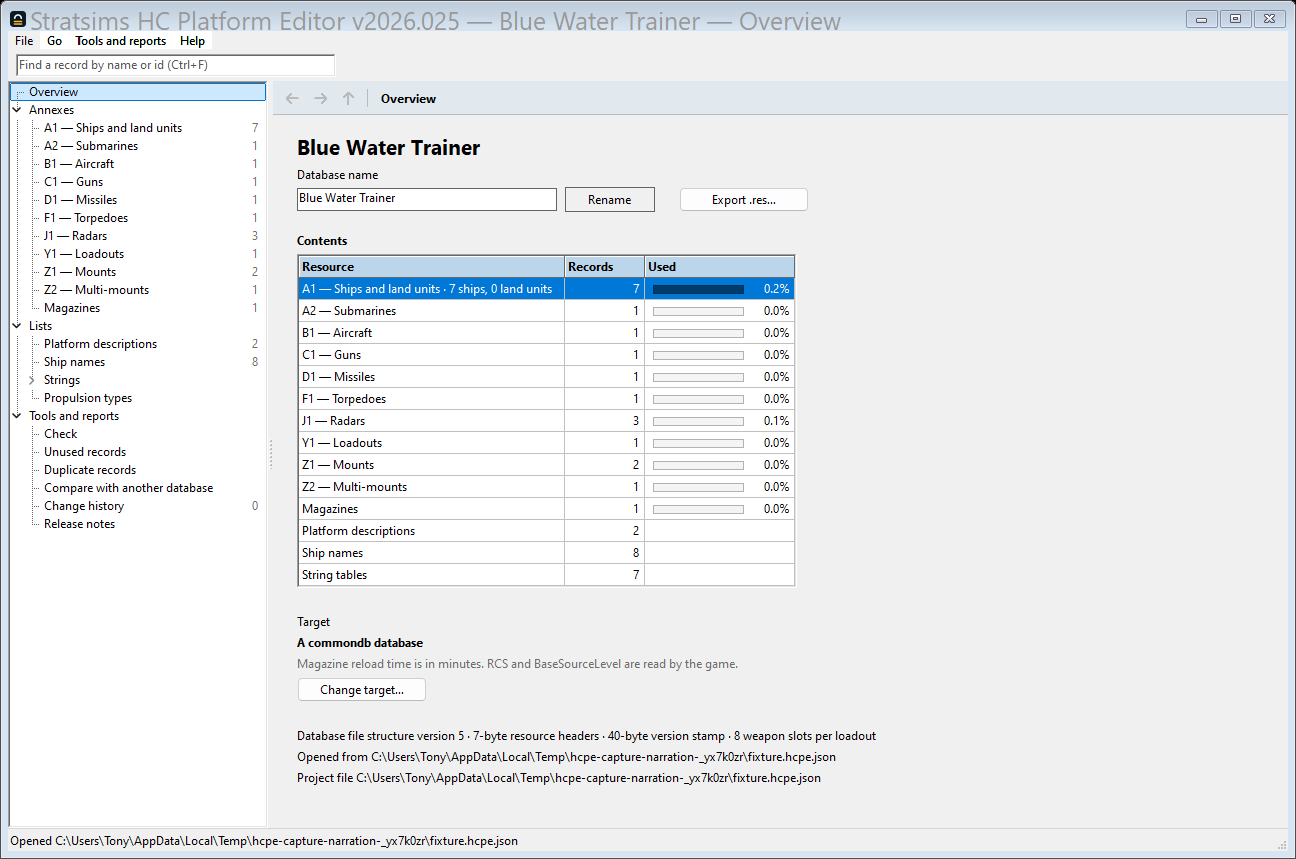
commondb.resor a previously saved.hcpe.jsonproject file. The first time you open a.resit asks where to save the project, offering the database's own name; after that it saves there for you when you close the window or open something else, and reopens the same project automatically on the next launch. File → Open Recent lists the last few. Point a shortcut at a specific database's.hcpe.jsonand it opens straight to that one, its own window and its own instance — the Settings guide covers running more than one database at once this way.Older databases open too, back to the battlesets of the 1990s that carry a database of their own, and so does the newest format. Which generation a file is, and what the editor does with each, is in Database versions and battlesets.
Databases from a Harpoon Gold-era build open as well. Their loadouts and multi-mounts carry four weapon slots where a modern database carries eight, in records of exactly the same size, and nothing in the file says which — not even the structure version, since a 2017 database declares the same one and carries eight. The editor works it out from the data; the last line of the Overview states how many weapon slots per loadout it read.
-
Find a record
The search box at the top of the window is always there, whatever screen you are on (Ctrl+F jumps to it). Type a name or an id and press Enter: the Find screen lists every match in a table of annex, name and id, grouped by annex so you are not guessing which "SS-N-19" the box means, and double-clicking a row (or pressing Enter on it) opens that record. When there is exactly one match, Enter opens that record straight away instead, which is what you want when the query is an id copied out of an error message (Back returns to the one-row table). On an annex grid the same box filters that grid as you type instead, and Enter there searches everywhere.
-
Look at the annex grid
Each of the 16 annexes (ships, subs, aircraft, guns, missiles, and so on) has its own grid, reached from the navigator tree on the left or the Go → Annexes menu. Drag the navigator's edge to make it narrower or wider, or put it away altogether with Go → Hide navigator (Ctrl+B, again to bring it back) when a small screen needs the whole width; the editor remembers both. Click a column header to sort by it. Each header also has a funnel that opens an Excel-style drop-down for that column (sort, a condition such as "is between", or a tick list of its values), and a right-click on a header lets you choose which columns show. The search box at the top of the window filters across every column you can see. Every record in the annex is loaded at once — there is no paging to wait for.
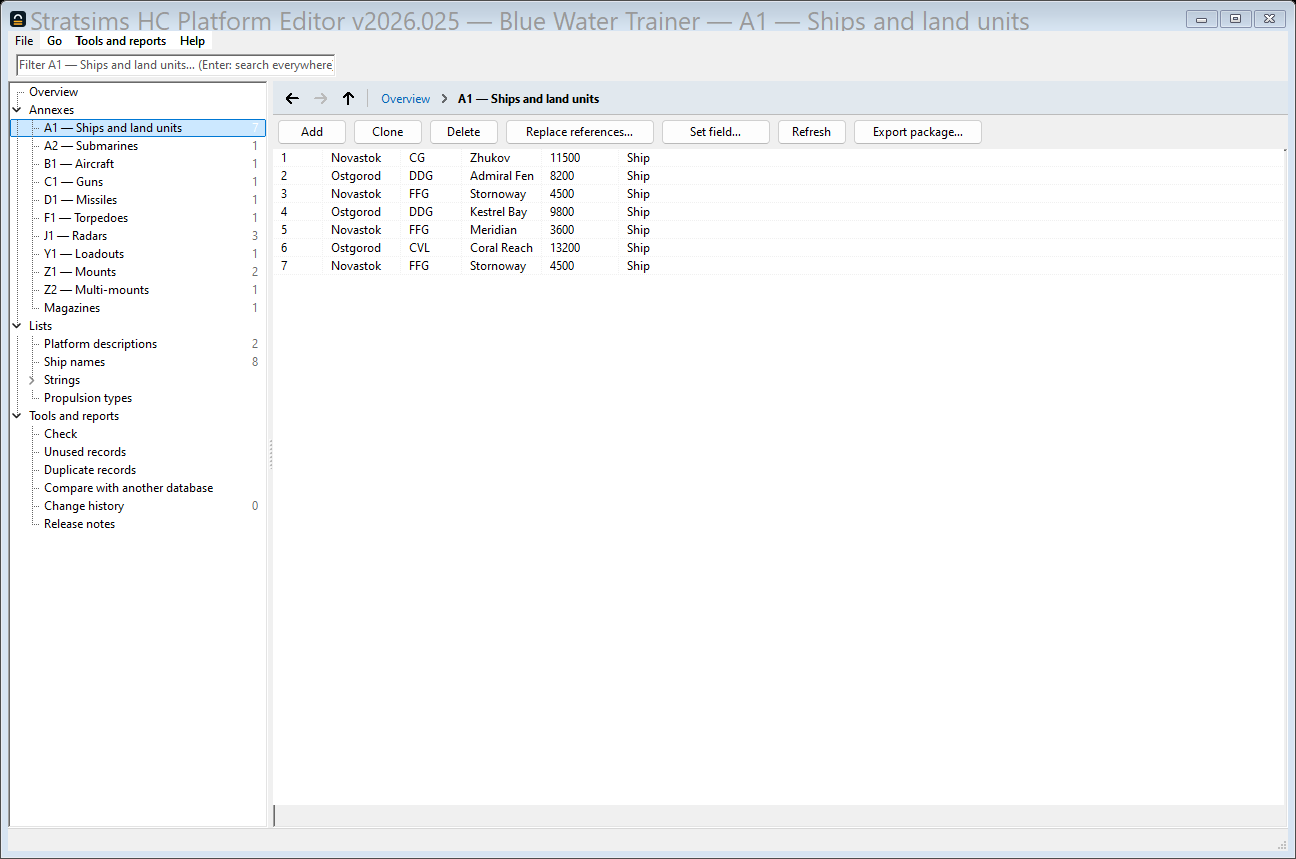
An annex grid. Double-click any row to open that record. -
Add a record
Add, on any annex grid's toolbar, opens a blank form at the id the record will get. Nothing is kept until you press Add to database (the same button that reads Apply once the record exists) — an empty name is refused rather than added. Leave the screen before that and nothing happened, which is the point: walking away from an unfinished ship never leaves a nameless one behind.
That save can finish more than the record itself. Adding a mount shows its weapons-carried grid right there on the create form, the same one a stored mount edits its load with, so a mixed load synthesises its multi-mount at the same moment the mount itself is created.
-
Make an edit
A record screen lists every field the annex's on-disk structure carries, labelled and grouped rather than presented in raw struct order. Anything that references another record, a weapon on a mount, a sensor on a platform, the contents of a loadout, is a Choose… picker naming the record, not a box asking you to remember its id. In a list of them, such as a ship's sensors or mounts, Remove (or the Delete key) takes the selected entry off and the ones after it move up; + Add puts a new one at the end. A sensor list also says what each entry is: Rad(AS), Rad(SS) or Rad(AS+SS) for a radar's air and surface search, IR for shipboard passive infrared, Son(A), Son(P) or Son(A+P) for a sonar's active and passive ranges, ECM for a jammer. Hover the tag for it spelled out, with the radar's own Type flags named as the Access editor named them. Every such list, a magazine's rows and a mount's or loadout's weapons included, changes order the same three ways: the ↑ and ↓ buttons, Ctrl+Up and Ctrl+Down (Ctrl+Home and Ctrl+End to the top or bottom) on the entry you are on, or a drag (a weapon's name onto another row, or a slot number up or down its column). A plane's loadouts and a platform's mounts are the exception to "order is cosmetic": scenarios and saved games name them by their place in the list, so Apply asks before it moves one. Apply writes the change and logs it in Change history (under Tools and reports in the navigator). Right after a change, an Undo (Ctrl+Z) button appears at the right of the status bar, and one click takes the whole change back; Revert on the record screen drops what you have typed since the last Apply. The record screen is also where a record's Used by list lives, at the bottom, and where Clone, Delete and Replace references… are.
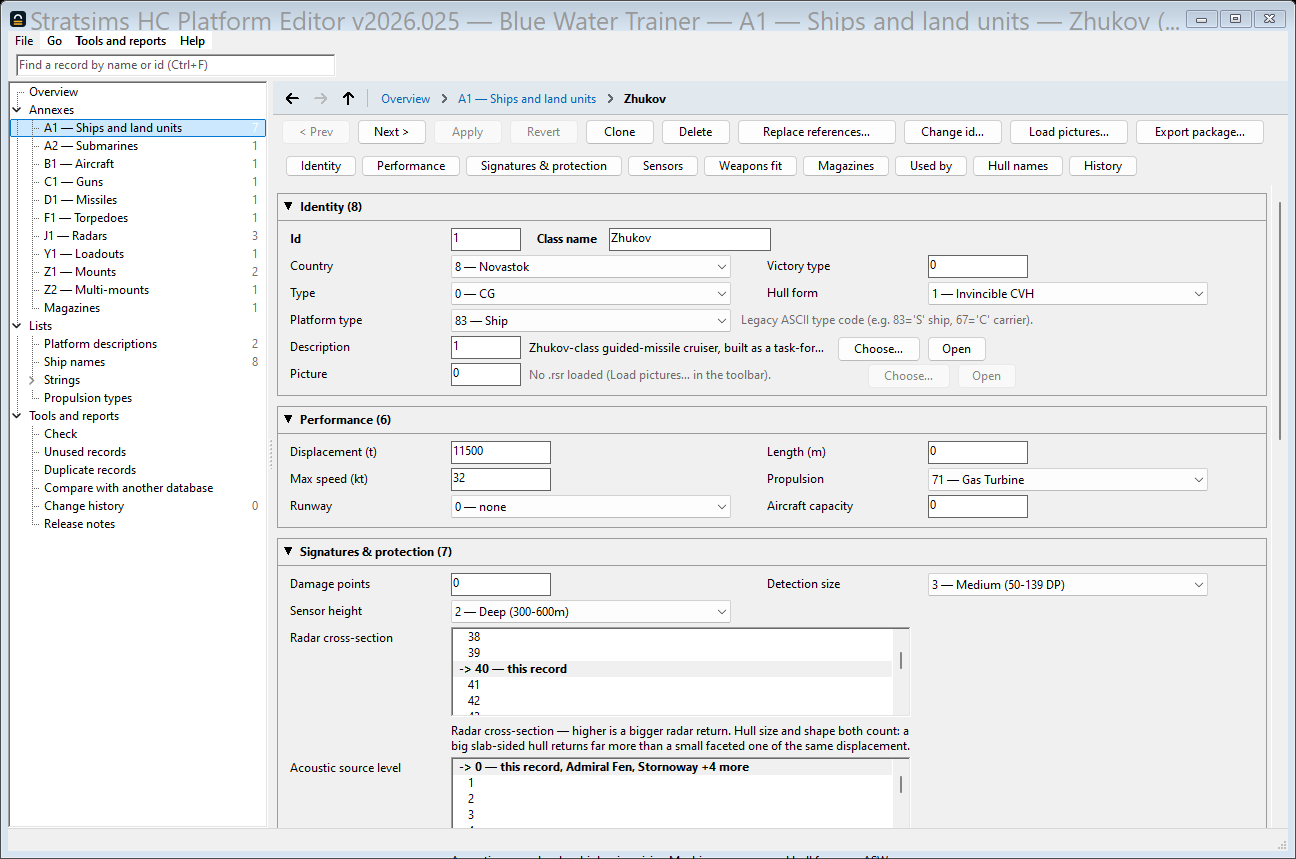
A record screen. Fields that reference another record show a picker, not a bare number. A narrated clip of the loop so far: opening a database, finding a record, and applying a change.
Open, find, edit, apply. If the clip does not play, download it directly. -
Export a
.resNothing you do on a record screen reaches a
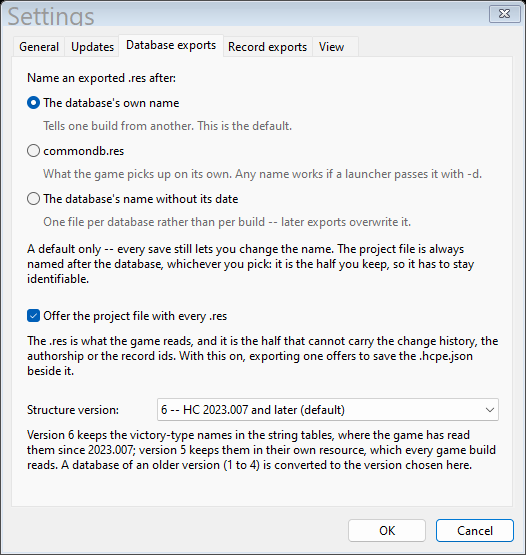
.resuntil you export one, from File → Export .res… (Ctrl+E). It checks first: the same checks the game itself would fail on. Find nothing wrong, and a native Save dialog opens so you can choose where to write the file, with a name taken from the database (Settings can change the default). Find something that would block the game from loading it, and it stops there instead, in an Export blocked dialog listing exactly what needs fixing, one line per finding naming the record and what is wrong with it. Double-click a line to open that record, or use a Fix the … records as a worklist button to take a whole group of them to the Check screen. A successful export is logged, and, as the releases guide explains next, that log entry is also what turns a stretch of edits into something you can post about. Nothing writes back over the.resyou opened by itself: an export goes where the Save dialog points and asks before it replaces a file, so choose a new name and the database you started from stays as it was. A database that belongs inside a battleset is offered a different export first; see Database versions and battlesets.
Export blocked: this database has a finding the game would choke on, listed with the record and field it names.
Starting a new database
File → New database…
(Ctrl+Shift+N) starts a database with no platform records at all,
for building a lineage of your own with Add and Import package. The editor
ships no game content, so the starter lists are copied from a database you
already have: the one that is open, or a .res or
.hcpe.json you pick. The new database takes that one's string
tables (sides, countries, ship and aircraft types, loadout and runway names),
its victory types and its propulsion types, and nothing else.
The dialog asks for a name (the database's own name, stamped in the
.res), shows the four side names as the starter has them so you can
retype them, and lets you start the country list or the ship-type list empty
instead of keeping the starter's (the first eight country slots are reserved
for the sides, so they stay). Everything else is always kept. The new database
opens unsaved, like an imported .res: you are asked where to
save its project file, offering <name>.hcpe.json. It starts
with one text, “No further remarks.”, and one change-log entry
saying which database it was created from.
If it says no
Be clear about what this means: the export refuses a database with references the game would reject. That means a field pointing at a record in the wrong annex, or a weapon's damage-point field carrying a id reference that lands outside the two annexes it is allowed to point into. It also refuses outright, with nothing to fix per record, a database in a file structure the editor cannot write back at all. None of this is the broader, more opinionated "Check" report you can run on the database at any time. Some findings Check flags as blocking are shapes the two real shipped Harpoon databases already carry, and the game loads them anyway, so the export gate lets them through.
One thing that is not a refusal: a database whose resources were stored compressed (LZH) is read fine, and written back uncompressed, so the file that comes out is larger than the one that went in.
What next
Load the exported .res in the game and confirm the change
looks the way you expected. Back in the editor, Change history in the
navigator shows exactly what changed and when. And once you have exported
more than once, the releases guide covers
turning that stretch of work into something you can post about.
Keyboard shortcuts
Press ? anywhere focus is not sitting in a text box, use Help → Keyboard shortcuts, or the button of the same name on the About screen, and a small window lists every one of these from inside the app itself — worth reaching for instead of coming back to this table, since it can never drift out of date with a build the way a page here could.
| Does | Shortcut |
|---|---|
| This shortcuts window | ? |
| New database… | Ctrl+Shift+N |
| Open… | Ctrl+O |
| Save | Ctrl+S |
| Save As… | Ctrl+Shift+S |
| Export .res… | Ctrl+E |
| Close the database | Ctrl+W |
| Find (jump to the search box) | Ctrl+F |
| Hide / show the navigator | Ctrl+B |
| Back | Alt+Left |
| Forward | Alt+Right |
| Up one level | Alt+Up |
| Undo the last change (the status-bar button; not while typing in a box) | Ctrl+Z |
| New: the current screen's own Add | Ctrl+Alt+N |
| Save a record, text or ship-name form, even with the cursor in a box | Ctrl+Alt+S |
| Previous / next record (also [ and ]) | Left / Right |
| Previous / next record, even in the middle of a field | Ctrl+Alt+Left / Ctrl+Alt+Right |
| Cancel an open dialog | Esc |
| Open the focused row (grids, Compare, Find, Check) | Enter |
| Move the highlight (id and picture pickers) | Up / Down |
| Accept the highlighted item (id and picture pickers) | Enter |
Back and Forward (also under the Go menu, and as arrows in the bar above the content that shows where you are) walk the locations you have actually visited in this window — annexes, records, and every tool screen. Go → Up one level climbs from a record to its annex.