Home / Tools
Tools: Find, Check, Duplicates, Compare and more
Search, a whole-database report, unused and duplicate records, comparing against a baseline, replacing references across a selection, the change log, and sharing work as a record package. Little of this lives on a record screen: the reports are under Tools and reports in the left navigator and in the menu bar, and together they are the reason to prefer this editor over opening the database in Access and hoping.
Find
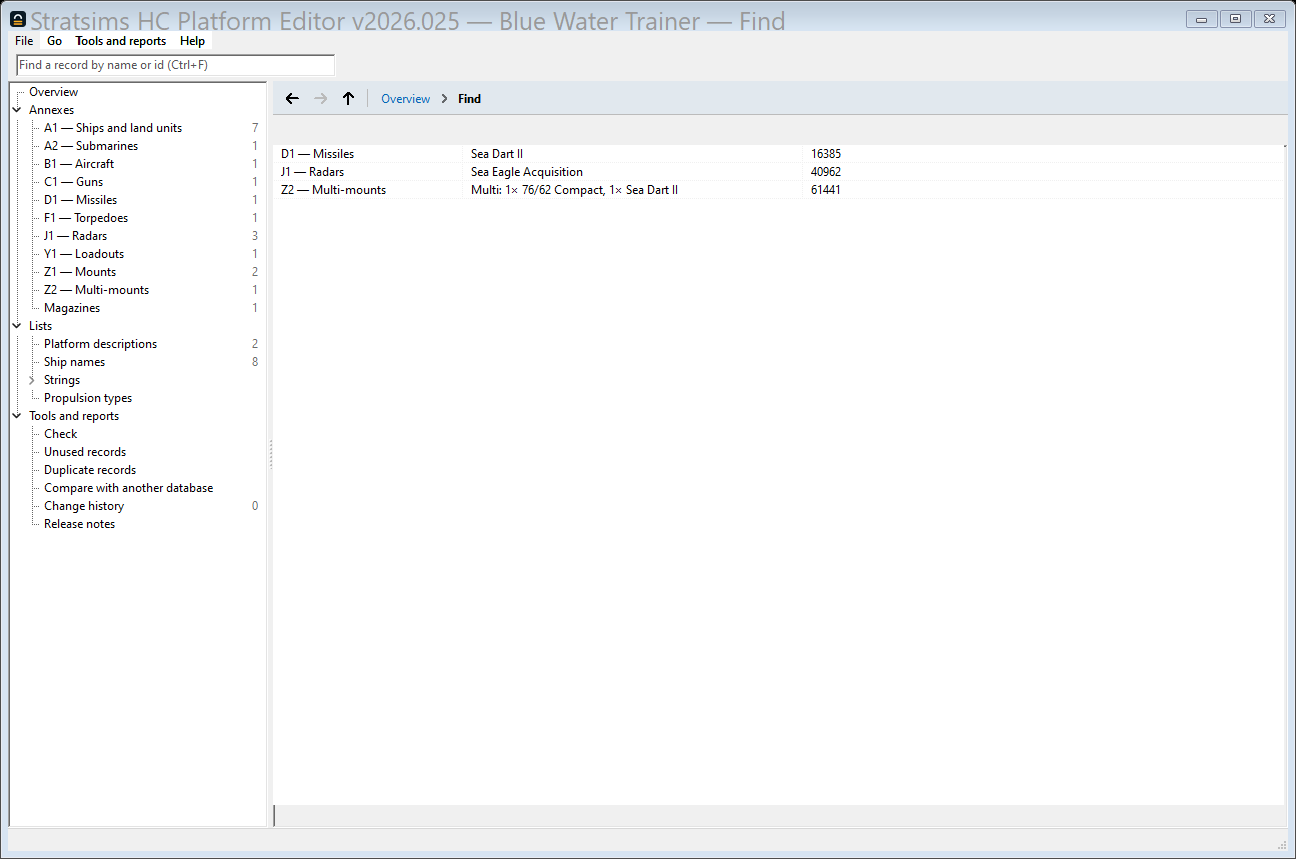
The search box at the top of the window works from any screen, not only the overview (Ctrl+F jumps to it). Type a name or a id and press Enter. The Find screen lists every hit in a table of annex, name and id, grouped by annex, so you are not guessing which of several similarly-named records the box means; double-clicking a row (or Enter) opens the record. A search with exactly one match, such as an id copied out of an error message or a Check finding, skips the table and opens that record at once; Back returns to the one-row table. No match leaves the Find screen with a message. The table has the same column filters an annex grid has. On a grid, Compare, Duplicates or one of the list screens the box filters that screen as you type and Enter searches everywhere; Esc clears the box.
Find matches names only, and it matches whatever the editor actually displays as a record's name. For a multi-mount, which has no class name of its own, that is the weapons it carries, so a query can hit one by the name of something it is carrying. For a value question, every radar reaching past a certain range, every ship with no picture, Find is the wrong tool: open the annex grid and use a column's filter funnel instead.
Check
Check sweeps every record in the database for faults that only surface far from the edit that caused them: a sweep of everything, so it is a screen you ask for rather than something run on every save. Findings fall into two bars. Blocking ones are what the export gate itself refuses: a slot pointing into an annex it may not (the game terminates on this rather than starting the scenario), and a value too big for the field it lives in. Advisory ones are legal bytes the export writes and the game loads without complaint: a magazine block out of order, the magazine pool nearing its ceiling, an id used twice, a hull-name class nothing claims, platform description that is not there, a weapon or sensor that reaches nothing at all, or a coded field — propulsion, detection size and the like — holding a value nothing in its vocabulary names. Nothing refuses these; they are judgement calls, and a finished database can still list a few.
Every finding family is documented in full on its own Check reference page: what triggers it, whether it blocks export, and how to fix it. This section is about how you use the report, not what each family means.
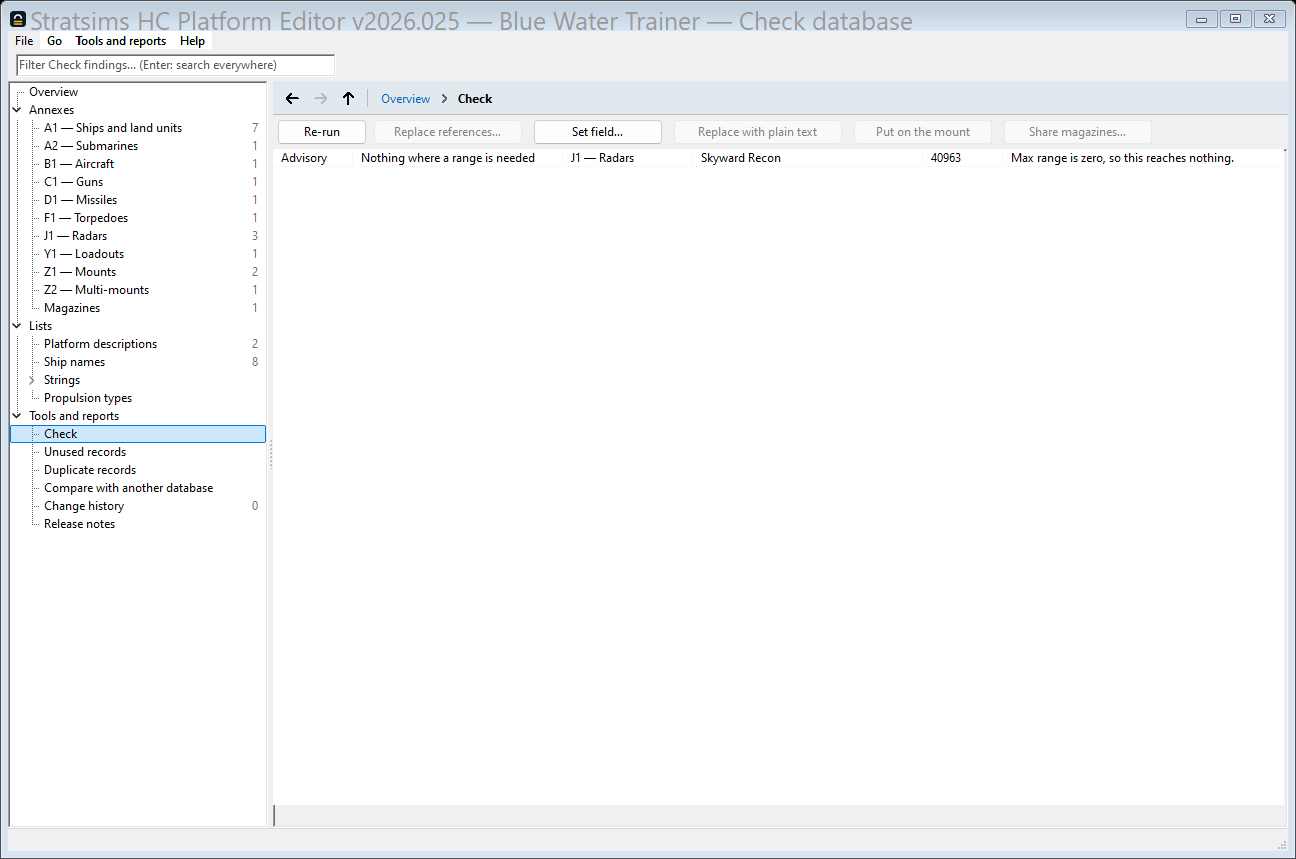
The report is a tree: each family, then each annex it found something in, then the findings themselves. Double-clicking a finding opens the record it names, the same as opening it from a grid or from Find, for an ordinary one-record edit. Findings that share one field across more than one flagged record — everything under "Nothing where a range is needed", for instance — are better fixed together: select that group in the tree and press Set field… on the Check toolbar. It opens the same bulk-edit dialog an annex grid selection does, already narrowed to that field, and already carrying every flagged record of the group as its selection. Pick the field (usually pre-chosen), type one value, and the preview lists the current and proposed value for every record it would touch before anything is written. A reference family instead has Replace references… on the same toolbar, which opens the same selection repoint dialog the annex grid's toolbar does, aimed at the group you selected (or, with none selected, at the first annex the findings name). Re-run sweeps the database again.
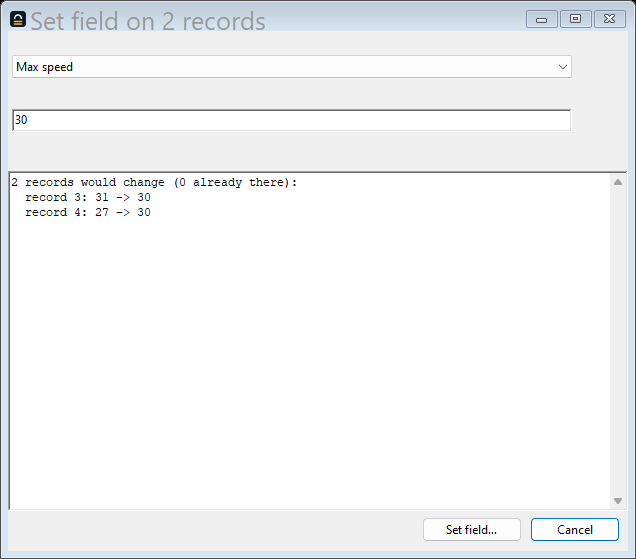
Here is the whole loop, start to finish: Check finds the zero-range radar above, Set field… fixes its range in one bulk edit, and Check comes back clean.
One family has its own button: "multi-mounts the mount editor would not make" are usually a single weapon whose rounds divide evenly across their mount's launchers and could be stated on the mount directly. Select those findings and press Put on the mount: the preview lists each mount that takes the load and any mount that cannot (the rounds do not divide across its launchers), and says which multi-mounts will be deleted because nothing references them any more. One Undo takes it all back. The same button sits on a multi-mount's own record screen. A multi-mount something else still references stays where it is. Freeing a multi-mount is a delete like any other, with the same caution for scenarios and saved games — see Deleting a record can break a saved game.
Unused
Unused is not a fault list: that is Check's job. A weapon no mount carries is perfectly legal and the game neither notices nor cares; this answers the other question, which is what is in the database that nothing else in it uses. It finds a radar no platform fits, a loadout no aircraft flies, platform description no platform describes, a hull-name list filed under an id no ship carries any more. Platforms themselves are left out of the report: nothing inside a database points at a ship, since the scenarios that do live outside it, so listing every ship and sub here would bury the answer under noise.
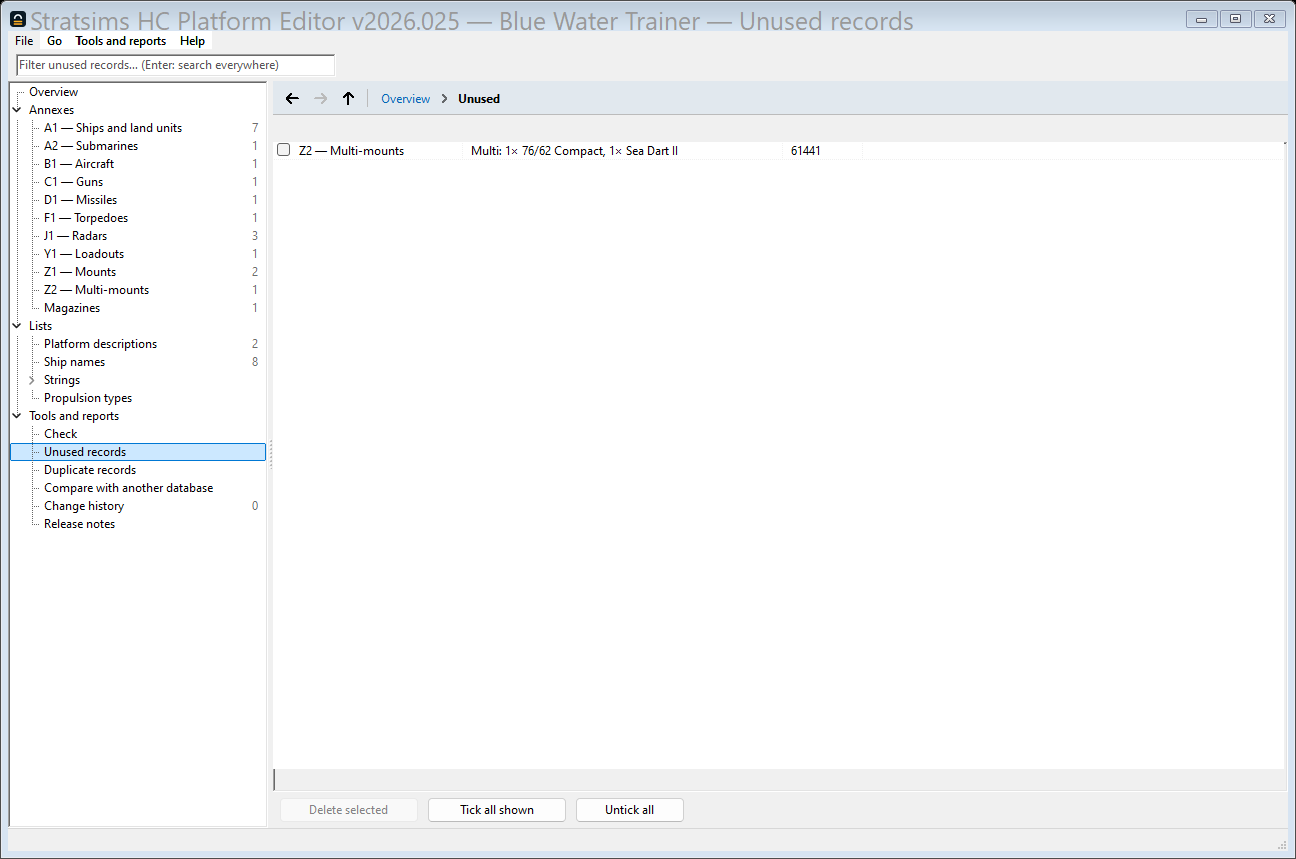
Clearing some out. Every group on this screen has a tick box per row; Tick all shown and Untick all do a whole group at once, and Delete selected opens the same Delete dialog the grid's own toolbar does: what would go, what still points at it, and the choice of leaving those references dangling or blanking them first. Each annex with something ticked is confirmed in turn, and nothing is deleted until you confirm there.
One caution before clearing anything out. "Nothing points at this" means nothing in the database points at it. A scenario or a saved game may still name the record, and those are files this editor never sees — see Deleting a record can break a saved game below. That is a general point about deleting rather than anything wrong with this report.
Duplicates
Duplicates finds two kinds of thing: records whose content is identical except for the id, the exact shape a Clone left unedited produces, and, on request, near matches: the same class name twice, one name a longer form of another, or two records that differ in only a field or two. Text and hull-name content gets the same exact-match treatment; a hull-name list itself never does, since a list is keyed to its own ship's id and two ships legitimately sharing one is not a duplicate of anything.
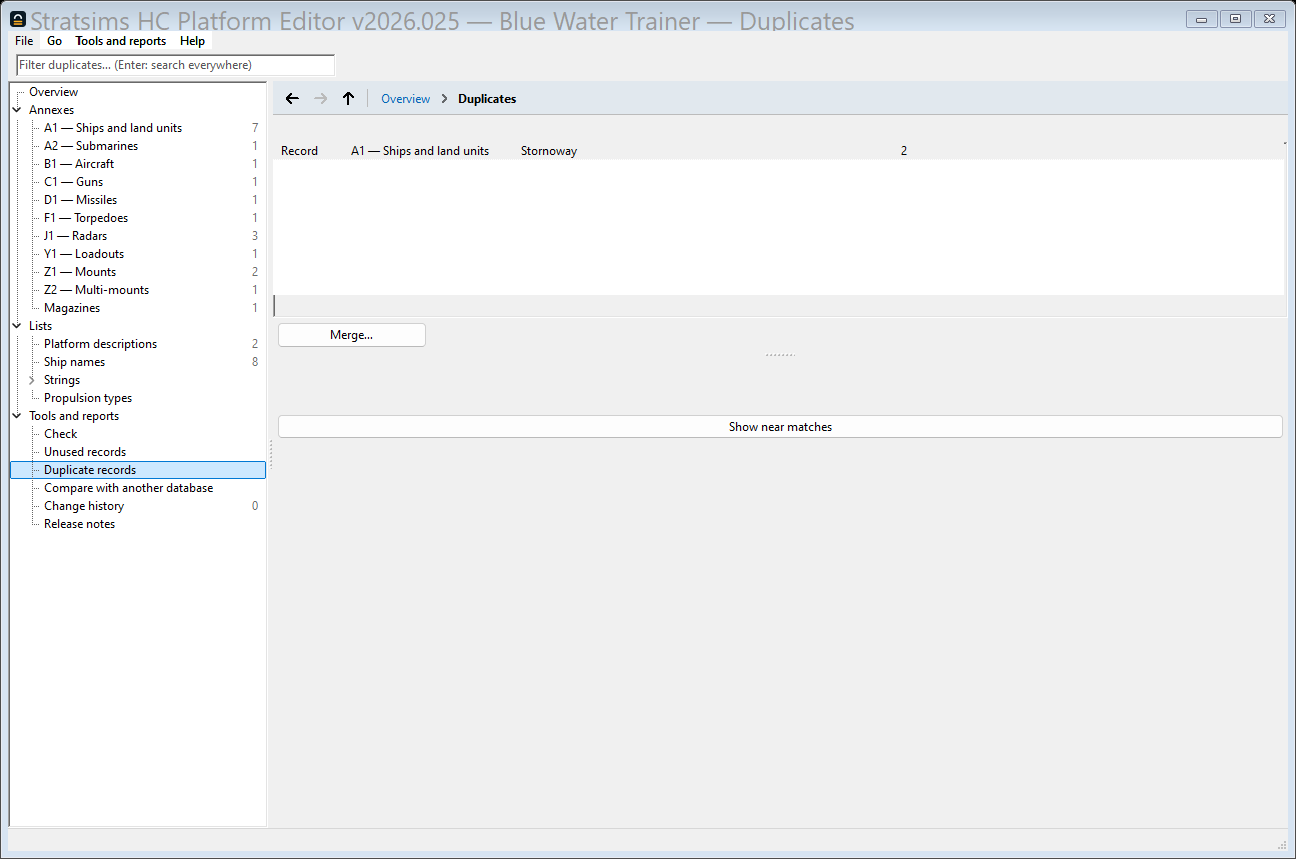
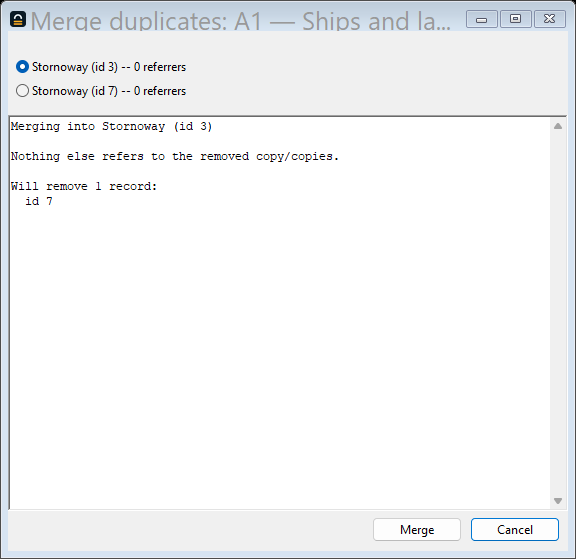
Select a group and press Merge… to open the guided merge: pick the survivor (Keep (the survivor)), and the dialog shows exactly what would change, which records reference a copy that is about to disappear, and what happens to them (harmless when nothing does, same as an ordinary delete's referrer check otherwise). Confirming re-points every reference to the survivor, then removes the rest. Every step is logged as an ordinary edit, so a guided merge is exactly as undoable as making the same changes by hand, one at a time, from the change log below. The copies it removes are deleted, so a scenario or saved game that names one of them by id is affected — see Deleting a record can break a saved game.
Compare
Choose baseline… loads a second
commondb.res (or .hcpe.json) as a read-only
baseline and shows what is different about the database open in the editor.
The baseline file is the "before"; this database is the "after":
added means it is here and not there, removed
means the reverse, and a changed field reads as
baseline value → this database's value. Records are matched by
id, which stays stable across releases, and the leftover additions and
removals in one annex are paired up wherever their content is identical, so a
reassigned id reads as one renumbered record rather than as an add plus
a delete.
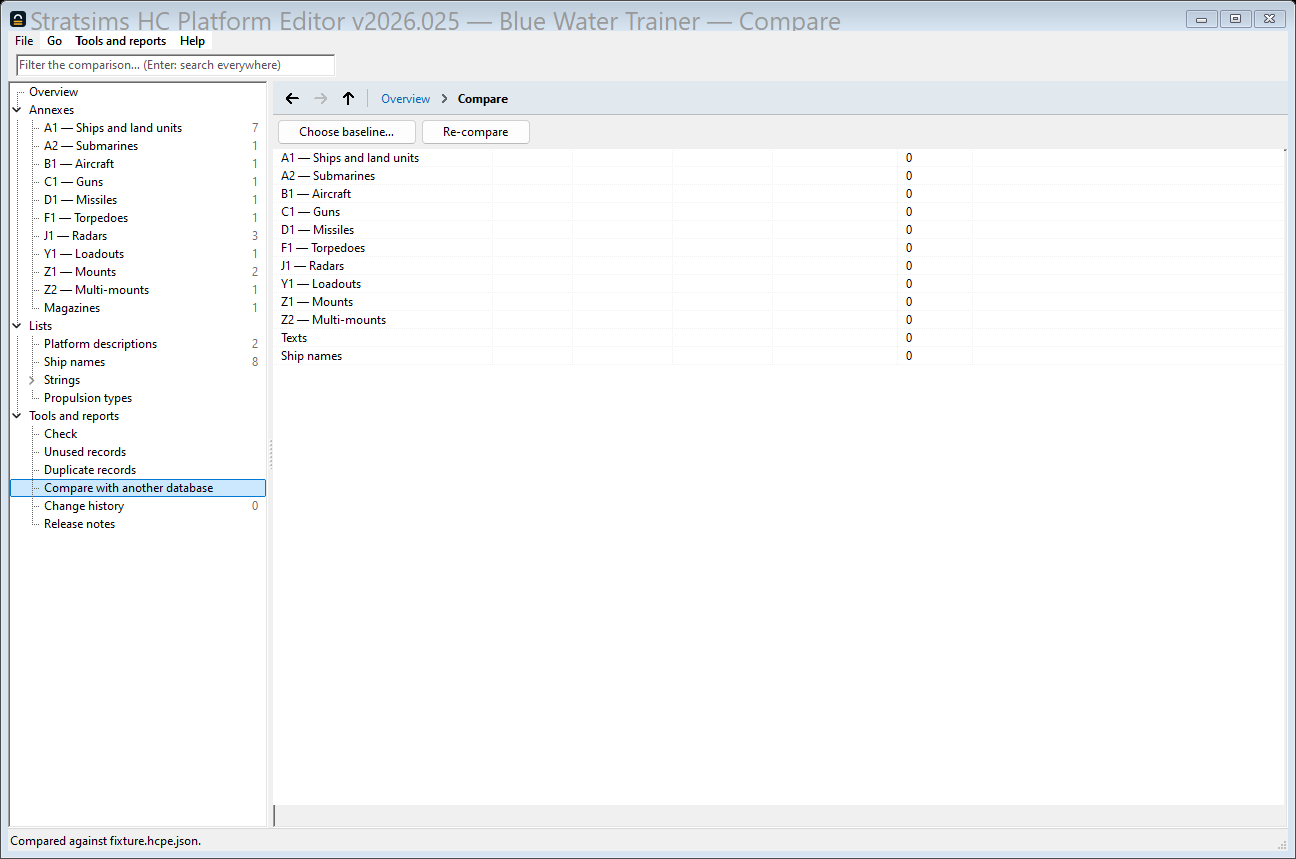
Get the direction right before you read the numbers: this is not the release notes report, which describes edits made in this editor from its own change log. Compare is for a database that arrived as a file, someone else's build, or last month's archive, and has no log of its own to read. It opens on a per-annex summary; open an annex to see its records (< Summary returns), and Toggle reviewed marks the rows you have dealt with.
The baseline stays loaded for as long as you keep this database open, not just for one comparison: a fix you make from a row in the report does not cost you the file a second time. What does go stale is the comparison itself: the editor never silently recomputes it behind an edit, so the moment you fix something the screen says so ("This database has changed since the comparison ran") and offers a one-click Re-compare rather than asking you to find the file again.
Replacing references, setting a field in bulk, and deleting a selection
Every annex grid's toolbar offers three verbs on a selection (click, or Shift/Ctrl-click to select more than one row), alongside Add, Clone, Refresh and Export package….
Set field… writes one value into the same field
across every selected record: pick the field from a combo listing this
annex's editable fields, type the value the same way you would on a record
form (a flags field takes the same +bit,-bit form its own
record screen documents), and the dialog's preview lists the current and
proposed value for each record before the dialog's confirm button writes
anything.
It is the same dialog Check's own Set
field… opens for a worklist of flagged records, just started
from a grid selection instead.
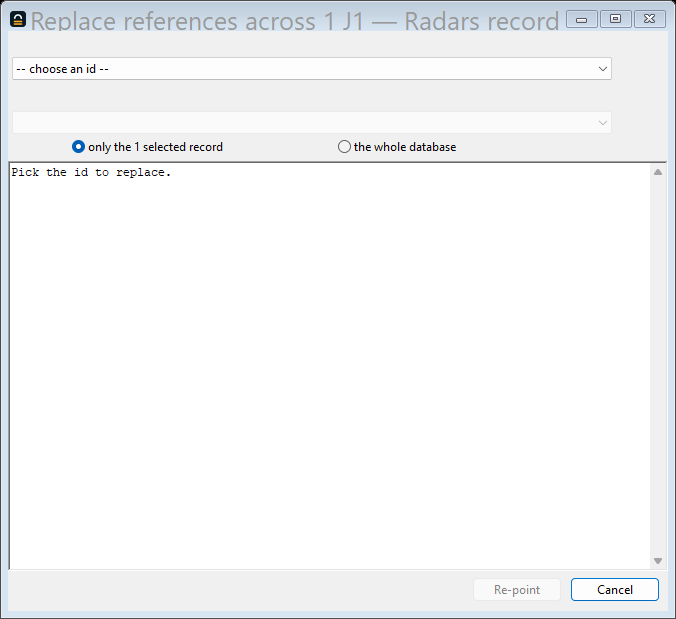
Replace references… is for an id-list field, a platform's sensors or mounts, a loadout's weapons: pick one id the selected records reference (broken references are listed first), then where it should point instead — another record, or 65535, which blanks the slot. Nothing is deleted, and the dialog's preview lists every referrer that will re-point before you commit to it. The Check screen's own Replace references… button opens the same dialog, pre-aimed at the first annex a reference finding names.
Delete removes the selection instead of editing it. Nothing goes on the spot: the button opens a dialog listing what would be removed and everything that still references it, then offers the choice a single record's own delete does — leave those references dangling (legal here; the Check reference's reference family reports the id rather than the game refusing to load it) or blank every one of them to 65535 first, previewed the same way Replace references… is. Each record's removal lands in the change log as its own entry, so reverting undoes one record at a time, not the whole selection in one step.
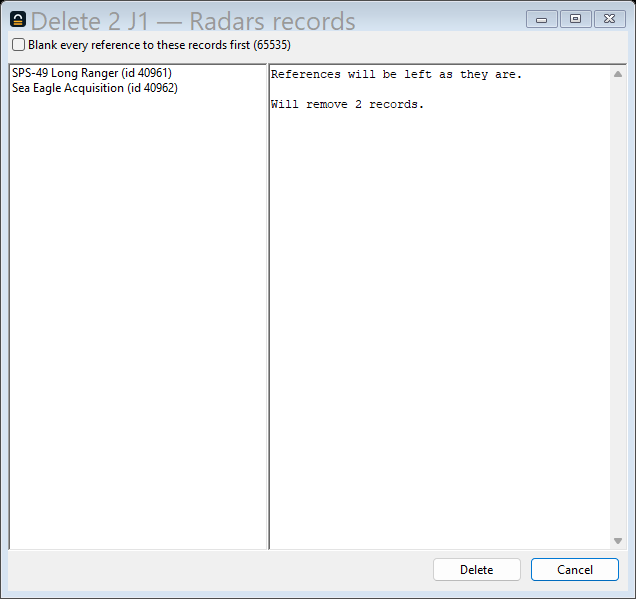
Deleting a record can break a saved game, and sometimes a scenario
Every "what still points at this" list in this editor — on a record's own Delete dialog, on the selection Delete dialog above, in the Used by list — is complete for the database, and says nothing whatever about anything outside it. Scenarios and saved games name database records by their id, and they are files this editor never opens and cannot know about.
This applies to every way a record leaves the database, not only the Delete button: deleting a selection from a grid or from Unused, the copies a guided merge removes, and the multi-mounts Put on the mount frees. Each of them can strand a scenario or a save the same way.
Saved games are the fragile ones. A save holds the units actually in play with the loadout, mount, sensor and weapon each one is carrying, so it names a specific set of records and expects every one of them to still be there. Delete a record a save is using and that save will not load.
A scenario is less likely to break, but it can, and the reason is worth knowing. A scenario carries a list of every record it requires — a few thousand ids, grouped one block per annex — and the game loads all of them before the scenario starts. That list is wider than what the scenario visibly uses. A case measured on 17 September 2026: a scenario refused to load against a database it had not been built with, because one loadout in its required list had been deleted since. Of the 3,806 records it named, that single absence was enough, and nothing in the scenario was flying that loadout — it was required, not used.
The game says which record it wanted. The message names the id in decimal and hex:
GetMemAnnexA Error: !IS_DISK(56129 [0xdb41]) = 56130The first number is the record it could not find; the second is where its
search landed instead, and is not itself a fault. The top four bits of the
wanted id say which annex it belongs to — 0xD above is
Y1, loadouts — so the message tells
you exactly what to put back.
Putting it back. Two routes, and the first is better because it restores the record rather than something like it:
- History keeps the whole deleted record. Find the delete entry and revert it, and the record returns with its original id and every field it had.
- Failing that, an older copy of the database still has it. Open that copy, read the record, and re-create it under the same id — the id is what the scenario names, so the id is the part that has to match.
Giving a record the id that was wanted. Add and Clone hand a new record the lowest free id, which is rarely the one a scenario is asking for. Change id…, on any record's toolbar, gives it another id inside its own annex. The dialog opens on the ids that something in the database points at and no record holds — usually the hole you are filling — then offers the lowest free one, and refuses an id another record already has. Everything in the database that points at the record follows it to the new id, a ship's or sub's hull names with it, and the whole move is one entry in History, undone as one. The Check family Points at a record that isn't there lists those wanted ids too, each with the record that names it.
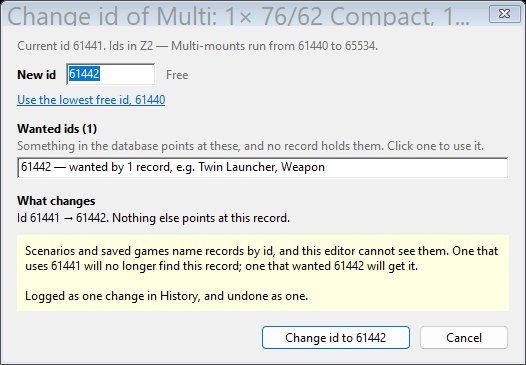
The warning on the dialog is the same one this section is about, the other way round: a scenario or save that named the record by its old id will no longer find it.
There is no warning for this and there cannot be one: the editor has no way to know which scenarios and saves exist, let alone what they name. What it can do is keep the evidence, which is why the change log holds the record itself and not merely the fact that something was removed. Keep the database copy a scenario was built against, and deleting stays a reversible decision.
History and revert
Every edit, wherever it was made, a record screen, a guided merge, a replace-references or delete dialog, lands in one change log, newest first (Change history, under Tools and reports). It is a complete account of everything that has ever happened to the project, whether or not any of it has shipped in a release. Export CSV… saves the whole log; Go to record opens the record a selected entry touched; Revert undoes the selected entry. (Right after you make a change you can also use the Undo (Ctrl+Z) button in the status bar, which reverts it without a trip to the log.)
Reverting one entry undoes exactly that change: deleting ten records through a selection dialog is ten log entries, each independently revertable, not one batch you either keep or discard whole. A revert is itself logged, the same as any other edit, so the log is never rewritten, only added to.
.res went out. Everything that changed the data leading up to
that point remains individually revertable, as ever.
A revert can also fail on a change that time has overtaken, undoing a create when the record was since deleted, say, and when it does, it tells you why rather than guessing at a result. Undoing a create or a Clone refuses the same way when something else has since come to reference the record it made: removing it would leave that reference pointing at nothing, so the revert names what still points there instead of leaving it dangling with nothing said about it. A record imported from someone else's record package carries its own foreign history with it, shown and revertable the same way (the Show imported batches checkbox), logged locally as what it is: an undo of something that arrived from elsewhere.
Record packages
A record package is how two authors share a slice of work without
handing over the whole database. Exporting one walks a record's downward
closure, the record itself, plus
every mount, weapon, sensor, loadout, magazine, platform description and hull
name it reaches, and writes it as a standalone .hcpe-pkg.json.
You can export one record's closure from its own screen (Export
package…, also File → Export record
package…), several at once from a grid selection, or the
whole span a release touched from the
release-notes screen. Whether the package carries the change history is the
Include change history box in the export dialog, whose
default is on the Record exports tab of Settings.
File → Import package… previews before it changes anything: which records it would create, which already match what is here (skipped, not overwritten), and which are a fast-forward: a record already present that the package's own history shows was edited more recently elsewhere. The preview states where the package came from: the source database's name, when it was exported, and who by, marked unverified when that name came from something short of an actual login, and, when the sender chose to include it, the latest change-log line for each record it would create, so you can see whether you trust it before you import anything. A hull-name class that would collide with one already here asks which set of names to keep. Confirming logs the whole import as one entry naming everything it touched, so undoing an import you regret is one revert, not a record-by-record hunt.
Nothing here is mutual: importing a package never changes the database it
came from, and nothing is deleted from the recipient's side. Unlike the
whole-project .hcpe.json import that replaces your working file
outright, this only ever adds.